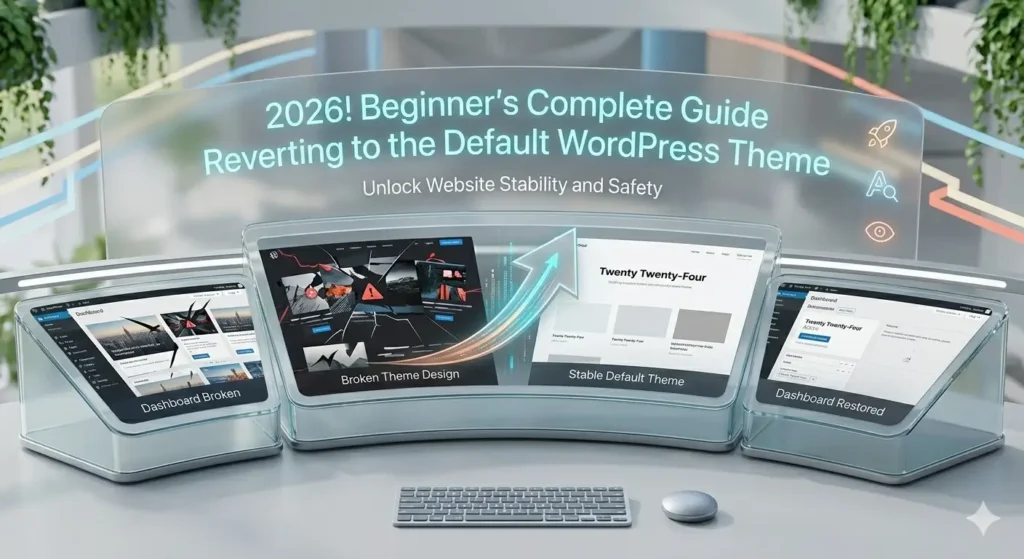
WordPress gives users full freedom to customize website design using themes. But sometimes while testing layouts, installing demos, or editing theme files, your website design can break. Many beginners then look for a simple solution to revert to the default theme in WordPress.
If your website layout looks messy, pages disappear, or customization goes wrong, switching back to a default WordPress theme is the safest solution.
In this detailed guide, you will learn every possible method to set default theme in WordPress, step-by-step, using beginner-friendly instructions.
What Is a Default Theme in WordPress?
A default theme is the official theme released by WordPress every year such as:
- Twenty Twenty-Four
- Twenty Twenty-Three
- Twenty Twenty-Two
These themes act as a backup or fallback design. If your active theme stops working, WordPress automatically loads a default theme so your website stays online.
Keeping at least one default theme installed is strongly recommended for website stability and security.
Why You May Need to Revert to the Default Theme
Website owners usually reset themes for these reasons:
✅ Website design broken after customization
✅ Plugin conflict with theme
✅ White screen error
✅ Slow website performance
✅ Testing new design
✅ Malware or coding issue
✅ Demo import problems
Sometimes even small file edits inside functions.php can crash a website. Switching to a default theme quickly restores access.
Method 1: Revert to Default Theme Using WordPress Dashboard (Easiest Way)
This is the safest and most common method.
Step-by-Step Process
- Login to your WordPress Dashboard
- Go to Appearance → Themes
- You will see all installed themes
- Locate a default theme like Twenty Twenty-Four
- Click Activate
That’s it.
Your website will instantly switch to the default WordPress theme without deleting content.
👉 Posts, pages, and media files remain safe because themes only control design.
Method 2: Reset Theme Customization Only (Without Changing Theme)
Sometimes you don’t want to change themes — only remove customization.
WordPress allows resetting templates back to their original layout.
Steps:
- Go to Dashboard
- Navigate to Appearance → Editor
- Click Templates
- Select the modified template
- Click the three-dot menu
- Choose Reset
This action removes custom edits and restores default theme layout immediately.
This method works perfectly when header, footer, or homepage layout is damaged.
Method 3: Reinstall Theme to Restore Default Settings
If customization problems remain, reinstalling the theme helps.
Steps:
- Activate another theme first
- Go to Appearance → Themes
- Select the problematic theme
- Click Delete
- Install the theme again
- Activate it
WordPress requires switching themes before deletion because the active theme cannot be removed directly.
Reinstallation removes corrupted settings and restores clean theme files.
Method 4: Revert to Default Theme Using File Manager or FTP
Use this method if your dashboard is inaccessible.
Steps:
- Login to hosting cPanel
- Open File Manager
- Navigate to:
/wp-content/themes/
- Rename or delete the active theme folder
Once WordPress cannot find the active theme, it automatically loads a default theme installed on your site.
⚠️ Important: Always keep at least one default theme installed.
Method 5: Change Default Theme from Database (Advanced Method)
If both admin panel and file access fail, database editing can fix the issue.
Steps:
- Open phpMyAdmin
- Select your WordPress database
- Open wp_options table
- Find these values:
- template
- stylesheet
- current_theme
- template
- Replace values with default theme name (example: twentytwentyfour)
- Save changes
After updating database entries, WordPress loads the default theme automatically.
This method is useful during critical website errors.
Method 6: Reset Theme Using Plugin
If you frequently test themes, plugins simplify resetting.
Popular reset plugins allow:
- One-click theme reset
- Customizer cleanup
- Layout restoration
For example, some themes provide reset tools that restore typography, colors, layouts, and design settings instantly.
Always create a backup before using reset plugins.
Important Things That Stay Safe After Theme Reset
Many beginners worry about losing data.
Good news — reverting themes does NOT delete:
✅ Blog posts
✅ Pages
✅ Images
✅ Categories
✅ Users
✅ SEO content
Only design and layout settings change.
Best Practices Before Reverting Theme
Follow these professional tips:
✔ Create Website Backup
Backup prevents data loss during reset.
✔ Keep Default Theme Installed
WordPress uses it as emergency fallback.
✔ Use Child Themes
Avoid editing main theme files directly.
✔ Test Changes on Staging Site
Professional developers never edit live websites.
Common Problems After Switching to Default Theme
Layout Looks Different
Each theme uses unique styling.
Widgets Missing
Reassign widgets under Appearance → Widgets.
Menu Disappeared
Reconnect menu from Appearance → Menus.
Homepage Changed
Reset homepage in Settings → Reading.
These issues are normal after theme switching.
When Should You Use Default WordPress Theme?
You should revert when:
- Troubleshooting errors
- Website crashes
- Plugin conflicts occur
- Speed testing required
- Redesign planning
Developers often activate default themes to identify whether issues come from themes or plugins.
Final Thoughts
Knowing how to revert to the default theme in WordPress is an essential skill for every website owner. Whether your site breaks after customization or you simply want a fresh start, WordPress offers multiple safe ways to restore default design.
The easiest method is switching themes from the dashboard, while advanced users can use FTP or database editing when access problems occur.
A smart website owner always keeps a default theme installed because it protects the website from downtime and technical failures.
If you regularly experiment with themes, learning how to set default theme WordPress settings properly will save hours of troubleshooting in the future.